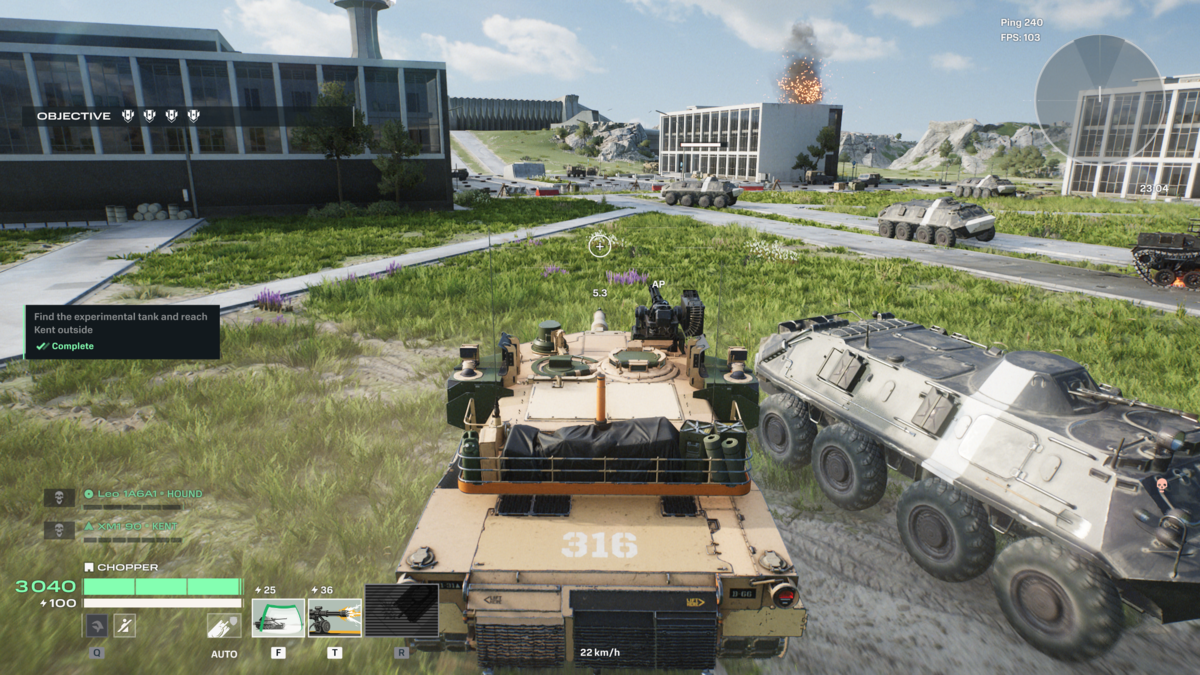
To achieve an optimal performance and eliminate stutters in World of Tanks: HEAT, you should prioritize lowering resource-heavy settings like shadows and visual effects while keeping V-Sync enabled to stabilize your frame rate. Optimizing these options ensures a smooth experience during intense combat sequences where sudden frame drops can cost you the match.
World of Tanks: HEAT is a tactical vehicular hero shooter developed and published by Wargaming, currently available on PC, which officially launched on May 26, 2026.
What Are the Best Graphics Settings for World of Tanks: HEAT?
The launch build of the game has introduced mild performance stutters even on robust hardware configurations. Testing conducted on a system featuring an AMD Ryzen 7 5700X, 32 GB of DDR4 RAM, and an AMD Radeon 9060XT with 16 GB of VRAM revealed consistent frame rate drops during heavy combat sequences. To resolve these issues, players should use a custom graphics preset that prioritizes frame rate stability over unnecessary visual flourishes.
Below is the optimized configuration table designed to maximize your frames per second while maintaining competitive visibility on the battlefield.
| Graphics Option | Recommended Setting | Performance Impact |
|---|---|---|
| Resolution | Native Screen Resolution | High (Locked by default) |
| Display Mode | Borderless | Negligible |
| V-Sync | On | Moderate (Prevents screen tearing) |
| Frame Rate Limit | 120 FPS | Low (Reduces GPU overhead) |
| Graphics Quality Preset | Custom | Variable |
| Objects | Medium | Moderate |
| Terrain | Medium | Moderate |
| Lighting | Medium | High |
| Shadows | Minimum | Very High |
| Post-Process | Maximum | Moderate (Reduce for older GPUs) |
| Visual Effects | Medium | High (Reduces clutter during explosions) |
| Upscaling Method | Off | High (Enable for older hardware) |
| Auto-Adjust Upscaling Quality | Yes | Low |
| Render Resolution | System Managed | Variable |
| Dynamic Resolution | 60 FPS (For older PCs) | Moderate |
Adjusting these parameters will directly address the rendering bottlenecks that cause micro-stutters during matches. Because this game behaves more like a fast-paced hero shooter than the slower, traditional tactical pacing of the original game, maintaining a stable frame rate is absolutely vital for tracking moving targets and landing precise shots.
How to Fix Stutters and Lag on Older PC Hardware
If your gaming rig is closer to the minimum system requirements, you will need to make further compromises to maintain a stable 60 frames per second. The single most impactful change you can make is lowering the Shadows setting to Minimum. Shadows in this game consume an immense amount of processing power while offering almost no competitive advantage. Minimizing them immediately frees up valuable GPU resources, allowing your graphics card to focus on rendering active targets and terrain.
Another critical setting to adjust is Visual Effects, which should be set to Medium. While setting this option to Maximum makes explosions and smoke look highly detailed, the resulting visual clutter can be incredibly overwhelming during massive team fights. Reducing this option keeps your screen clear of excessive debris and prevents your frame rate from tanking when multiple tanks fire simultaneously. Furthermore, keeping V-Sync turned on is highly recommended if you experience persistent screen tearing, as it forces the game engine to synchronize frame delivery with your monitor refresh rate.
Should You Enable FSR or XeSS Upscaling?
In the current launch build of the game, the native resolution setting is locked to your monitor default display resolution. This means you cannot manually lower your resolution in the standard settings menu to save performance. To circumvent this limitation, you must rely on upscaling technologies like Intel XeSS or AMD FSR. Enabling these options will artificially reduce the internal rendering resolution of the game and upscale the image, providing a massive boost to your overall frame rate at the cost of some overall visual sharpness.
This reliance on upscaling is becoming increasingly common in modern PC titles, reminiscent of how the Forza Horizon 6 PC launch skipping FSR frame generation support forced players to manually tweak their hardware settings to find a stable balance. If you are running an older graphics card, you should also enable Dynamic Resolution and set the target to 60 FPS. This allows the game engine to dynamically scale down the rendering quality on the fly during intense combat sequences, ensuring that your gameplay remains fluid when the action heats up.
Why Is World of Tanks: HEAT Crashing on Achievements?
Many players have reported sudden, random crashes occurring precisely when they unlock a new in-game achievement. It is important to understand that this is a known software bug present in the launch build of the game. It has absolutely nothing to do with your system hardware, graphics settings, thermal throttling, or driver compatibility. Altering your graphics options will not prevent this specific crash from happening.
Wargaming is currently investigating this issue, and a future stability hotfix is expected to resolve the achievement-related crashes. Until an official patch is deployed, players will simply have to deal with the occasional crash when completing major milestones in their matches.
For the best overall experience, start by applying our recommended custom preset, and then gradually adjust the Post-Process and Objects settings upward if you find that your system has extra performance headroom to spare.
Featured image via destructoid.com


Comments